View P3 Optimizations
After you have created one or more policies, you can view the progress of optimizations applied to URLs.
View P3 Optimizations
Perform the following steps to view P3 policy optimizations:
- Log in to your PhotonIQ Performance Proxy dashboard.
- Click Optimizations.
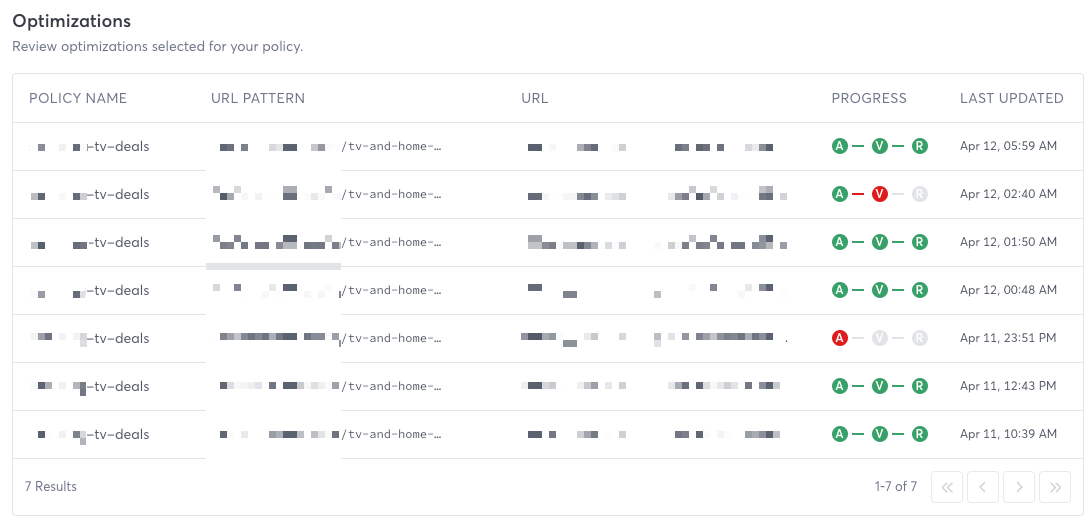
Optimization Fields
- Policy Name - Name of the policy setting the optimizations.
- URL Pattern - URL pattern associated with the policy.
- URL - Specific URL being optimized.
- Progress - Shows where in the optimization process the optimization is.
- A - Analyzer status. P3 is analyzing the page.
- V - Validator status. P3 is validating the page.
- R - Rewriter status. Optimizations are all applied. The color of the letter indicates its status:
- Green indicates the stage has successfully completed.
- Gray indicates the stage has not begun.
- Red indicates the stage has stopped with an error.
- Last Updated - The day and time the progress was last updated.